Jim Rossman: Hotspot mode vs. public Wi-Fi
Published in Science & Technology News
We’ve all been there.
You’re out at the mall or shopping at the grocery store or at a hotel and your phone offers to join an open Wi-Fi network.
Should you do it? Is public Wi-Fi safe to use?
Yes…and no.
Public Wi-Fi is safe enough for tasks like checking the news or looking up the closest good Chinese restaurant. It’s fine for searching a route on your favorite mapping website.
It would also be safe enough to log into YouTube and let your kids watch videos on their tablet or even watch Netflix on your laptop.
Please remember, it is very easy for someone to set up a fake hotspot that mimics the name of a real network. That “free public wifi” you see in the list of available networks could very well be a criminal with their own hotspot and all your traffic is being logged.
If you’re at a hotel or other spot with Wi-Fi for customers to use, most will either give you a password to use with a room number or they’ll redirect you to a page to enter an email address and make you agree to their terms of service.
I would avoid using any public Wi-Fi to access any site or service connected to your financial accounts, like online banking or doing any online shopping or using email. I’d also avoid doing any work tasks while using public Wi-Fi.
These days, almost everyone’s cell phone has a hotspot feature that turns the phone into a Wi-Fi hotspot that you can use to get your laptop or tablet online through the phone’s connection.
You’re much more secure running all your Wi-Fi traffic through your phone instead of a public network.
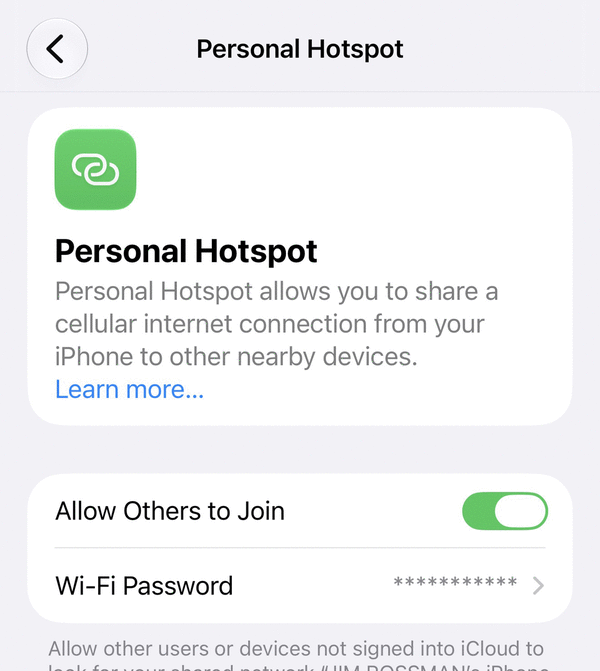
On an iPhone, go to your Settings, then open Personal Hotspot. You can click to turn on the setting to Allow Others to Join, and then you can set up a password. Note: There is a pretty complex password listed, but you can change the password to anything you choose.
On an Android, the settings will differ depending on your phone’s manufacturer.
Samsung users should look under Settings, then Connections, then Mobile Hotspot and Tethering.
Google Pixels users and most other Android users can check Settings, then Network and Internet, then Hotspot and Tethering.
Not all phone plans support hotspot mode, so check with your carrier if you don’t see these options.
Finally, you can only share your cellular connection via Wi-Fi to other devices. If you’re connected to a Wi-Fi network, you can’t run hotspot mode on your phone.
©2026 Tribune Content Agency, LLC.






Comments